 AstroLab
AstroLab user guide
Practical paths to start using the observatory. The companion reference details features module by module.
1. Explore a first object
Open Search, select a body, then tap it for its card. Track retains a position anchor; Approach changes framing. Once tracking Earth, tap the Moon then Observe: Earth keeps its screen position and the camera orbits it with the direction of the Moon. Gestures preserve your framing offset. The Look row realigns this direction without moving Earth on screen; its cross releases the gaze without releasing Earth. Planetarium still opens the sky from the surface. Drag to rotate and pinch to zoom.
2. Set date and time
Open settings, then Date and time. Use the two endless horizontal wheels: days (24 px per day) and time (1 px per minute). Arrow keys step by one day or minute; Page keys by one week or hour. Both wheels cross midnight and month boundaries. You can also type DD/MM/YYYY. The orbital map uses UTC; the planetarium displays the terrestrial location’s time. Editing pauses the simulation.
3. Observe your sky
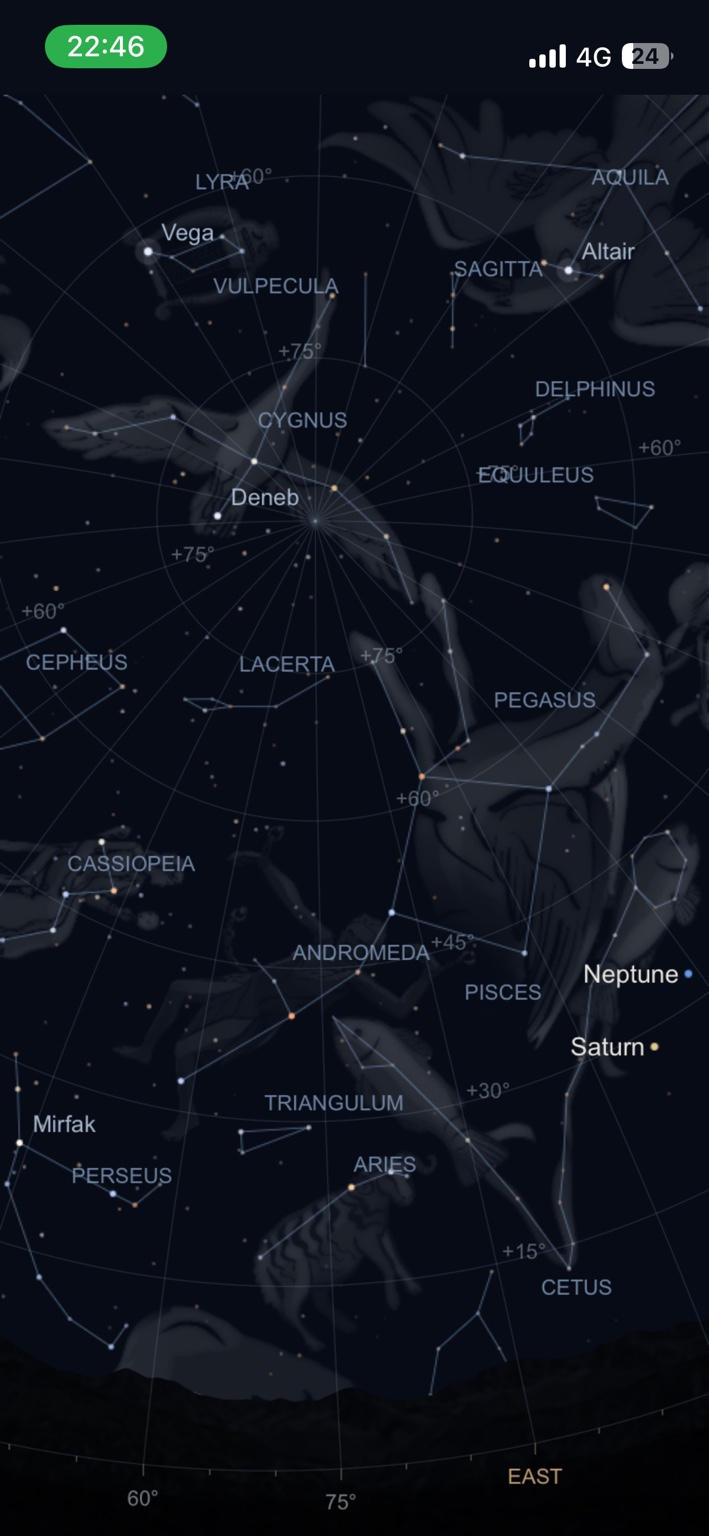
Open the planetarium, choose a city or coordinates, then check date and time. Sensors are optional. From a point selected on a globe, the local texture keeps map colours and adds illustrative rock, ice or cloud detail; the sea uses ripples and reflections. Giant planets retain a fictional horizon, without solid ground. Ground and daylight normally hide objects that are not visible from that location. Settings Atmosphere and landscape: two 0–100% sliders control daytime atmosphere and nighttime light pollution. The adjacent toggle switches directly to 0 or 100%. Chosen night brightness (22–17 mag/arcsec²) gradually hides dim stars and the Milky Way. This educational level is not a measurement of the selected city. Films can animate both values and then restore your settings.
4. Read the observation location
The location sits directly above the clock. On Earth, a nearby catalogue city provides a landmark; exact coordinates remain visible in smaller text. On another world, its name and the point coordinates replace the city. Tapping a widget background keeps the controls visible.
5. Set orbital playback speed
The wheel reaches 500 days/second, forwards or backwards. HD 196885 opens playing at 300 days/second.
6. Choose a culture and its artwork
Settings Sky and guides Sky tradition. The menu shows figure and artwork counts. Artwork is enabled by default when the planetarium opens. Adjust Constellations and Artwork separately. Tap a name to open its card: Frame adjusts the view without locking; Lock isolates and follows the figure. Unlock to restore the full view. The five Mexica figures are a partial selection. Five contemporary Chinese drawings are also available; the Tupi catalogue still has no artwork. The Constellations shortcut hides or shows the selected lines and artwork without changing these choices.
7. Learn and experiment
Open an article in Learn: the main visual appears immediately after the introduction. Shaded bodies use simplified textures; libration retains lunar surface detail. The compact control plays, pauses or replays; the slider remains usable and dims when idle. Experiments retain their multiple settings, numerical results and limitations. Enlarge opens the interactive diagram in the page; close with the cross, Escape or browser Back.
8. Travel and watch a film
Discover opens on Featured: a varied selection, followed by three ways to see the Moon. Browse topics with the segmented selector; Stars & galaxies separates planetary systems, stars and galaxies. Search filters as you type, in French or English, with or without accents. Within a topic, Search everywhere broadens the scope. The format filter separates views and films; All discoveries keeps the complete catalogue. After opening a discovery, Back restores the list, its category, selection and scroll position so you can choose another. To see the softened giant-planet limb, search for “Jupiter · the cloud limb”: the paused close-up fits your screen. Back restores the list at its previous scroll position, even after repeated openings. A view is freely explorable; a film follows a narrative. In the player, Back fades with the controls and returns to Discover. Progress is saved on this device; Restart film returns to the beginning. A completed film starts over. Some shots now keep Earth and Moon framed together as they move. Framing leaves room for captions; manual navigation stays free, with Reframe restoring the shot. In a spacecraft journey, open the notebook to change stages, see the entire route or resume tracking.
9. Create a view or film
The + button opens assisted creation. Mistral is the default provider. Your validated key stays on this device through updates. Provider models load automatically online; your available choice is retained, otherwise a fallback is proposed using provider preferences. The director can compose original observations: place, date, body and framing. It reuses a discovery when it precisely fits the request. Then describe your intent. Creations are stored locally in My creations. Generation requires Internet and may incur provider charges.
10. Capture and share
Photo and video opens capture settings. Sharing a view sends a link containing scene state; sharing the website sends the general introduction. Video and sharing capabilities depend on the device.
11. Install, load and take offline
On iPhone: Safari Share Add to Home Screen. Open the app online and load desired content before leaving. Caching is progressive: not every image and mission is available from the first screen. The system can evict local storage.
Additional help
Find an object
Open Search to find an object by name or by a reference such as M31. Results also use the catalog’s known names and aliases. Select a result to center the view and track the object. Then tap the object in the scene to open its information card and actions.
Date, time and location
The time panel lets you change the date, adjust speed and pause the simulation. In the planetarium, the observing location determines the horizon and visible objects: check it if the sky differs from what you see outside.
Track, approach and recenter
Track keeps the selected object as the target. Approach changes your viewpoint to examine it more closely. Recenter restores useful framing after moving around. Available actions depend on the view and object.
Discoveries and films
Discover brings together scenes to explore and narrated films. A scene can be explored freely; a film follows a sequence of steps with explanatory text. Use the player controls to pause or adjust speed when you need more reading time.
Create and share
My content groups your creations. The + button creates content. Share offers the current view with its settings or the presentation website: choose the current view to send your scene.
Readability and performance
Settings let you adjust text size and view layers. If the scene becomes crowded, hide guides or satellite groups you do not need. Educational object sizes do not represent their true proportions.
Sound and music
The music button opens sound controls. If you hear nothing, check the app volume, device volume and silent mode. Depending on the browser, an interaction is needed to allow audio playback.
Stars, exoplanets and galaxies
Zoom out from a system to reach the stars, then approach a known host to reveal its planets. The galaxy browser uses the same gestures; the Milky Way card opens the stars. Travel settings provide a physical speed (90% of c by default), relativistic effects and time advancement. Animation duration remains independent. Discover Delta Cephei and quasar 3C 273 in Discover. The system picker offers the embedded extrasolar systems. Positions, phases and distances can use illustrative models: consult card limits and sources.
Full reference
Detailed catalogue of features, content and parameters
This guide describes the Web version. An earlier installed Apple version may not include the latest changes.